A tariff is a tax the government charges on items you bring into the country. These fees eat into your bottom line if you pay them out of your own pocket.

    Passing tariff costs to your customers keeps your business profitable when importing goods.

    QuickBooks Online gives you a simple way to bill this cost to the buyer. You can bundle it into your price or list it clearly on the sales receipt.

    This guide shows you how to set it up.


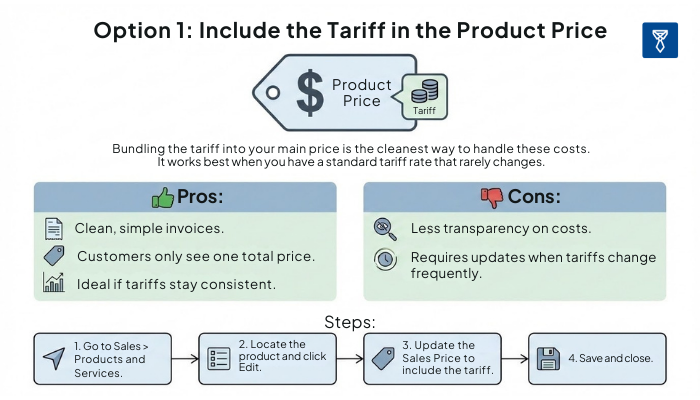
    Option 1: Include the Tariff in the Product Price

    Bundling the tariff into your main price is the cleanest way to handle these costs.

    It works best when you have a standard tariff rate that rarely changes.

    Pros:

    • Clean, simple invoices.
    • Customers only see one total price.
    • Ideal if tariffs stay consistent.

    Cons:

    • Less transparency on costs.
    • Requires updates when tariffs change frequently.

    Steps:

    1. Go to Sales > Products and Services.
    2. Locate the product and click Edit.
    3. Update the Sales Price to include the tariff.
    4. Save and close.

    Option 1:  Include the Tariff in the Product Price

    💡Click to view full image


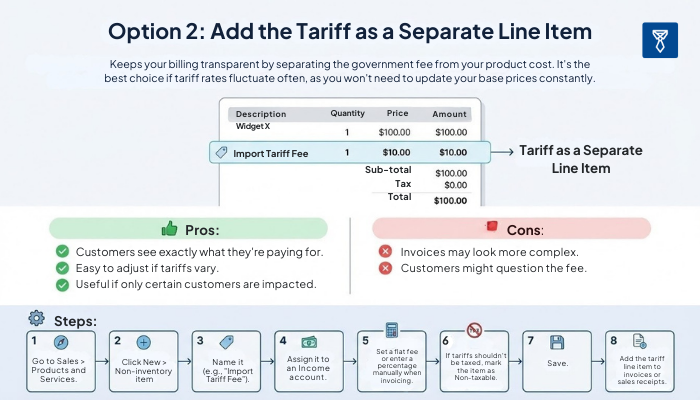
    Option 2: Add the Tariff as a Separate Line Item

    Option 2 keeps your billing transparent by separating the government fee from your product cost. It's the best choice if tariff rates fluctuate often, as you won't need to update your base prices constantly.

    Pros:

    • Customers see exactly what they’re paying for.
    • Easy to adjust if tariffs vary.
    • Useful if only certain customers are impacted.

    Cons:

    • Invoices may look more complex.
    • Customers might question the fee.

    Steps:

    1. Go to Sales > Products and Services.
    2. Click New > Non-inventory item.
    3. Name it (e.g., “Import Tariff Fee”).
    4. Assign it to an Income account.
    5. Set a flat fee or enter a percentage manually when invoicing.
    6. If tariffs shouldn’t be taxed, mark the item as Non-taxable.
    7. Save.
    8. Add the tariff line item to invoices or sales receipts.
    Option 2: Add the Tariff as a Separate Line Item

     💡Click to view full image 


    Example:

    Item

    Qty

    Rate

    Amount

    Product A

    1

    $100

    $100

    Import Tariff Fee

    1

    $10

    $10

    Total


    $110


    TaxValet - The Ultimate Sales Tax Checklist
     

    Best Practices for Adding Tariffs to QuickBooks

    Be transparent about tariff costs so your customers can see that tariffs are government costs, not a means of padding extra profit. To do so, label the line item clearly, like “Import Tariff Fee – Government Mandated.”

    Another best practice is to track this income in a separate account so you can see exactly how much you recover at the end of the year. This keeps your books clean and your data ready for tax season.


    Common Mistakes to Avoid

    The biggest pitfall is not revising product prices or tariff items when rates change. If trade policies change and you forget to update your system, you end up eating that cost yourself.

    Also, avoid lumping tariff fees into your general sales income. Mixing these numbers makes it impossible to see your true profit margins when tax season rolls around.

    Lastly, be careful not to accidentally double-tax your customer. Tariffs are usually a tax themselves, but if you pass that cost on to your customer, many states consider it part of the “sales price.” This means you often have to charge sales tax on the tariff fee, effectively taxing a tax.


    Final Thoughts

    Handling these extra costs doesn't have to be a headache. With QuickBooks Online, you can choose between a simple built-in price adjustment or a transparent line item.

    Either way, you will protect your profits and make invoicing clear and professional for your customers.


    Frequently Asked Questions


    Is a tariff the same as sales tax?

    No. Sales tax applies to the final sale within the country, while a tariff is a tax on the import itself. You should generally not apply sales tax to the tariff fee line item, or you might end up double-taxing your customer.


    Can I automate tariff fees in QuickBooks Online?

    Not completely. While you can set up the line item to save time, QBO won't automatically track changing government rates for you. You need to update the fee manually if the trade policy changes. We recommend bookmarking the U.S. International Trade Commission (USITC) search tool. It’s the official database for Harmonized Tariff Schedule (HTS) codes and current duty rates. Check it whenever you hear about new trade policies to see if your products are affected.


    Do I need QuickBooks Online Advanced for this?

    No. Both methods we covered work perfectly in the QuickBooks Simple Start, Essentials, and Plus plans. Advanced has features for “Landed Cost,” but you don't need to upgrade just to pass these fees to your customers.

     
    TaxValet - The Ultimate Sales Tax Checklist


    Disclaimer: Our attorney wanted you to know that no financial, tax, legal advice or opinion is given through this post. All information provided is general in nature and may not apply to your specific situation and is intended for informational and educational purposes only. Information is provided “as is” and without warranty.

    Share

    What you should do now

    1. Get a Free Sales Tax Plan and see how Tax Valet can help solve your sales tax challenges.
    2. Read more articles in our blog.
    3. If you know someone who’d enjoy this article, share it with them via Facebook, Twitter, LinkedIn, or email.

    Get expert sales tax insights!

    Eliminate sales tax headaches with TaxValet guides, tips & resources delivered right to your inbox.